
tutorials
Model Gateway basics
Overview
Large language models (LLMs) get the "large" part of their name from their scale, including billions of parameters (the numerical values learned during training). Those values have to live somewhere! For example, a model with 70 billion parameters stored at 16 bits each needs about 140 GB of memory just for its parameters, before we account for the working memory needed to generate a response. That's far more than a typical laptop can muster.1
There's also the work of computing each response. GPUs are useful here because they can perform many of the model's calculations in parallel. Shared servers with this hardware let us use demanding models without each person needing their own machine capable of running them. Smaller models and quantized models (which store weights using fewer bits) can make local use practical too.
Now imagine wanting to experiment with several models. We need somewhere to store their weights, enough memory for whichever ones we keep loaded, and the computing power to run them. We don't have to keep them all loaded at once, but switching between them can mean more downloads, setup, and waiting. Sharing model servers can spare each person from repeating all of that work.
Suppose we want to use several models, each running on a different machine. Without a shared entry point, our code may need a different server address and access setup for each one. Moving a model to another machine could mean changing the clients that use it. How can we keep those details out of each client's code?
A model gateway sits between clients and model servers. Clients send requests to the gateway, which checks access and routes each request to the selected model. We can use one interface without having to track where each model runs. That doesn't make the models interchangeable, but it simplifies how we reach them.
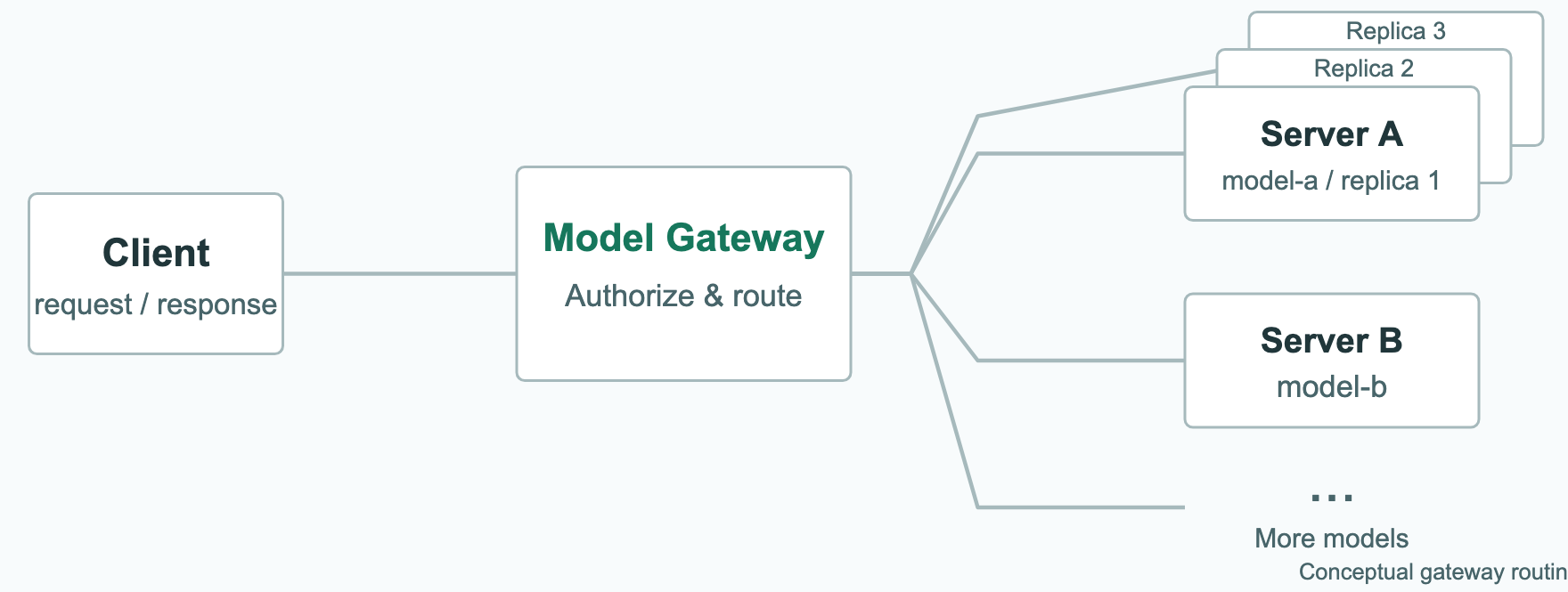
You don't need to specify which model host you're targeting. Just tell the gateway which model you want to "talk" with by using its model ID. The gateway handles routing your request to the server hosting that model.
Outcomes
After this tutorial, you should be able to…
- distinguish a model, a gateway, and the client or harness around a model
- find your course project and use your own API key without exposing it
- list available models and make a small OpenAI-compatible request
- recognize what document access, conversation history, and tools require
- inspect completion status and ask for help with access or request limits
A shared API interface
How does our code "talk" with a model? An API (application programming interface) gives one program a way to communicate with another. Instead of typing into a chat window, we can send messages from Python and work with the response in our code.
OpenAI's API has become a widely adopted reference for this kind of interface. Other services (ex. Hugging Face's Text Generation Inference) offer OpenAI-compatible APIs, allowing us to use familiar request formats and client libraries with models served elsewhere. Think of it as a shared convention, rather than a promise that every service supports every feature in exactly the same way.
The model is not the whole application
A chat application often involves all sorts of things like assembling prompts, extracting files, managing history, and executing tools. All of that affects what information reaches the model. It helps to distinguish three pieces:
| Component | What it does |
|---|---|
| Model | Generates a response from the input it receives. |
| Gateway | Authorizes requests and routes them to a permitted model. |
| Client or harness | Constructs messages and may execute tools and return their results. |
An LLM ("the model") doesn't magically do all of those things. They involve an interplay between the model's outputs (including proposed decisions or actions) and the rest of the application. The application controls which actions actually happen and what information gets sent back to the model.
If we want the model to work with a document or an earlier conversation, something has to supply that information. For example, putting a title, URL, or local filename in a prompt doesn't make our simple Python client open the document and send its contents.
Tools
What would change if we wanted the model to use a tool†? We could describe an available function in a request and let the model propose calling it. Our client decides whether to execute the requested operation and, if so, sends the result back to the model:
graph TD
  C["Your client"] -->|messages| G["Gateway: access and routing"]
  G -->|input| M["Model"]
  M -->|answer or tool call| G
  G -->|response| C
  C -->|execute allowed call| T["Your tools"]
  T -->|result for next request| C
The gateway connects the client to the model, but it does not execute our local tools. The application decides which tools to offer and which proposed calls to carry out. Asking for an operation isn't the same as having executed it.
We'll explore that loop separately. We can start with ordinary messages, without adding tool execution to the mix.
Our course gateway
With those distinctions in mind, let's connect to the gateway we'll be using in the course. It organizes access into projects. Your project determines which models you can use, and your own project key lets your Python client make requests. The models run elsewhere, so you don't need to download them or run them on your laptop.
Before you start
Use your configured Python environment and your own course account. You'll find the gateway address, assigned project, and model identifier in Class Maestro (CM). We'll use those values below, rather than hard-code a particular model into the tutorial.
Find your project and create a key
Follow the gateway link in CM and sign in with your course account. Open your assigned project. Don't see it? Ask for help. Borrowing someone else's key or choosing an unrelated project won't fix your course access.
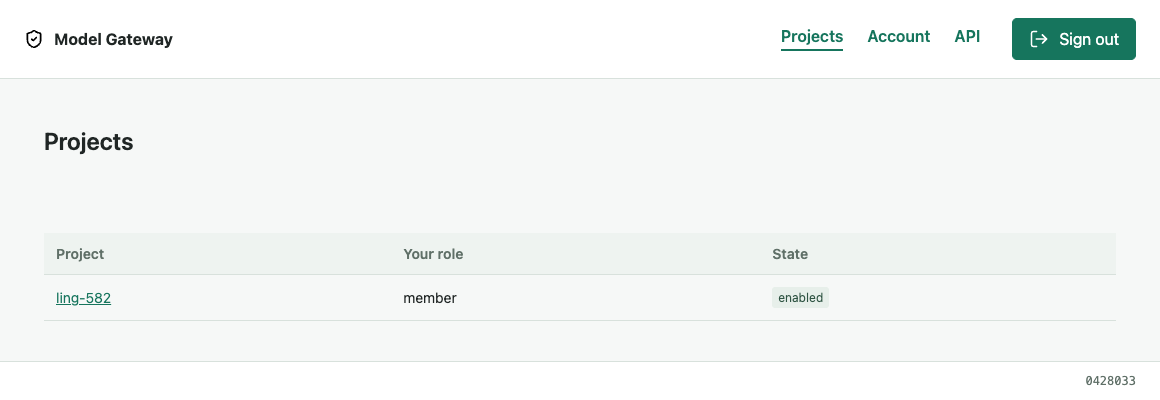
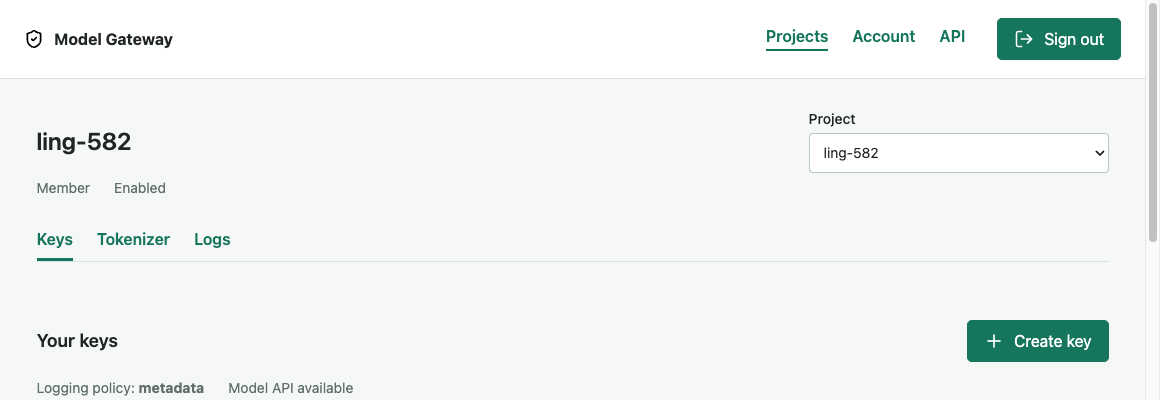
Open the project's Keys tab and create your own key. Signing in through your browser gets you into the gateway's interface. The key is what lets your code make API requests.
Set up the Python client
We'll use the openai Python package to handle the requests. If it isn't already
installed, install it in your existing course environment:
python -m pip install openaiOur client needs three things: where to send requests, which model to use, and our key. We'll keep these in environment variables, which our Python code can read without putting the key into the script itself.
Replace the two placeholders below with the API URL ending in /v1 and the
assigned model ID from CM. Python's getpass asks for your key without showing
it as you type or putting it into shell history. This example works in Bash and
Bourne-style shells:
export GATEWAY_BASE_URL='PASTE_THE_ASSIGNED_API_URL_ENDING_IN_/v1'
export GATEWAY_MODEL='PASTE_THE_ASSIGNED_MODEL_ID'

GATEWAY_API_KEY=$(python -c 'import getpass; print(getpass.getpass("Gateway key: "))')
export GATEWAY_API_KEY
Run Python from that terminal so it inherits these variables. If you're using a notebook, there's one more detail to keep in mind:
Make a small request
Before sending a long document, let's check that we can make a small request. We'll connect to the gateway, check that our assigned model is available, and ask a short question:
import os
from openai import OpenAI

client = OpenAI(
    base_url=os.environ["GATEWAY_BASE_URL"],
    api_key=os.environ["GATEWAY_API_KEY"],
    timeout=120,
    max_retries=0,
)

# Check access to the assigned model before sending a request.
model = os.environ["GATEWAY_MODEL"]
available = {item.id for item in client.models.list().data}
if model not in available:
    raise RuntimeError("The assigned model is not available to this key.")

response = client.chat.completions.create(
    model=model,
    messages=[{"role": "user", "content": "Explain a held-out evaluation in two sentences."}],
    max_tokens=256,
    stream=False,
)
choice = response.choices[0]
print("Finish reason:", choice.finish_reason)
print(choice.message.content)
Notice how the earlier distinctions show up in the code. base_url tells the
client where to send the request, api_key authorizes it, and model says which
model we want to talk with. Changing the model ID doesn't require us to find
that model's server address.
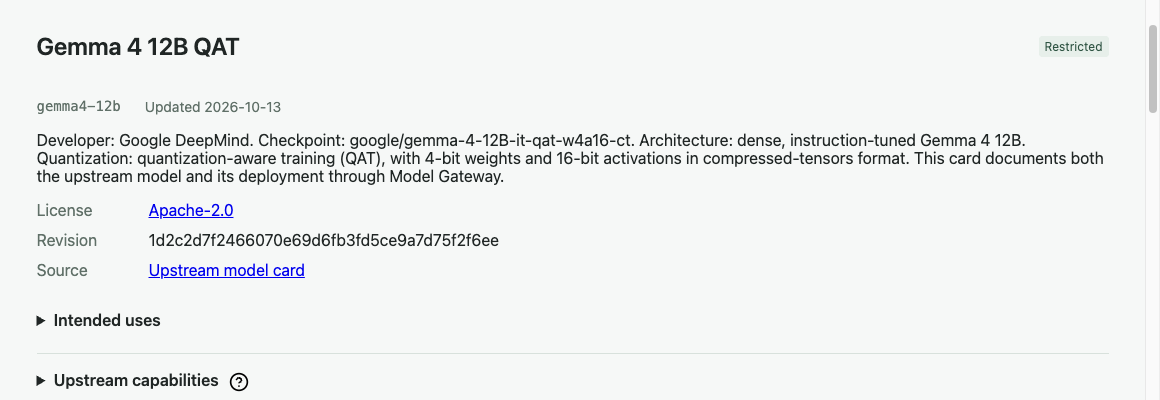
The gateway takes care of access checks and routing, but we still have choices to make about the input and output. Use the model assigned in CM, even if your key permits other models. Read its card to see its limits and the available evidence about what it supports. When documenting a run, record the model ID and any available version information.
What did we actually send? The messages list contains our conversation. Each
message has a role and content. Here, there's just one user message. The
model's answer comes back as an assistant message. Calling it an assistant
doesn't make its answer authoritative, of course!
We use the SDK's Chat Completions interface because our gateway supports that interface. OpenAI's own service and our gateway need not support every API feature or model setting in the same way.
There are no tools in this request, and no earlier conversation is included. If we make another request, the client doesn't automatically add this exchange to it. We have to supply any history we want the model to receive.
What about max_tokens=256? That's a cap on the generated output, not the size
of the input we can send. Check the printed finish reason too. A value of
length tells us the response reached a length limit, so we should check whether
it was cut short rather than assume we received a complete answer.
When a request fails
If the small request doesn't work, start with the basics:
- Is this the right project?
- Does the model ID match the one you were given?
- Is your key still active?
A typo or access problem is easier to isolate with a short prompt than with an entire paper.
For a longer request, check the input and output limits. Don't silently cut off
source text just to make it fit. That changes what the model can base its answer
on. We also disabled automatic retries in the example (max_retries=0), so a
failed request doesn't quietly trigger several more attempts.
Still stuck? Keep the error and request ID, if available, and ask for help. Leave the key out of anything you share. Once you get an answer, check its substantive claims against the source. Getting a response tells us the request worked, not that the answer is right.
Footnotes
- This is a weight-only estimate: 70 billion values times 2 bytes gives 140 billion bytes (140 GB in decimal units). Actual memory needs depend on precision, model structure, and the request. Hugging Face's model memory estimator distinguishes storing model weights from the additional memory needed for inference. ↩